Most “best monitor” posts sell you specs you don’t actually need. You’ll see a list sorted by response time or curvature or some marketing term like “gaming grade,” and none of it asks the one question that actually matters: what are you using this thing for?
A monitor for competitive shooters and a monitor for spreadsheets and video timelines are not the same purchase, even if they’re sitting next to each other on the same shelf. This guide sorts picks by what you’re actually doing on the screen, not by whatever spec happens to be trending this year.
How to Actually Pick
Match the spec to the use case, not the brand. A competitive shooter needs refresh rate and response time. A spreadsheet-and-Slack setup needs screen real estate. A color grading pass needs panel accuracy. None of these needs are solved by the same monitor, and none of them are solved by buying whatever has “gaming” printed on the box.
Some links on this page are Amazon affiliate links. If you choose to buy through them, HobbyEngineered may earn a small commission at no extra cost to you.
These links only appear where tools or everyday support items naturally fit the topic. No sponsored placements. No hype.
The Ports You Actually Need
Before any of the specs above matter, check the connection. The wrong port turns a great panel into a bottleneck.
HDMI 2.1 is the one to look for if you’re connecting a PS5 or Xbox Series X, it’s what enables 4K at 120hz and variable refresh rate on console. Older HDMI 2.0 ports cap out lower and will quietly limit a console that’s capable of more. HDMI is also the only port you’ll find on TVs, worth knowing before you go looking for something that isn’t there.
DisplayPort is the standard for PC gaming monitors and generally supports higher refresh rates more reliably than HDMI on the same panel, worth checking if you’re chasing 144hz or 240hz from a gaming PC. This is a monitor-only port, TVs don’t include it, so if you’re going the TV-as-monitor route from the earlier section, HDMI is what you’re working with.
USB-C on a monitor can carry video, data, and power delivery over one cable, which matters most for laptop users, plug in once and get a display connection plus charging. Not every USB-C port on a monitor does all three, some are data-only, so check before assuming it’ll charge your laptop.
If you’re pairing a new panel with older hardware, or a TV with a PC, confirm the port and cable match before anything else on this list.
Why “Monitor vs TV” Isn’t a Settled Question Anymore
Here’s the part most buying guides skip: a dedicated computer monitor isn’t automatically the right call anymore, and the pricing is a big reason why.
Monitor prices have climbed past regular TV prices for the same panel technology. A lot of that gap isn’t panel quality, it’s the word “gaming” on the box. Certified adaptive sync, marketed refresh rate tiers, and gaming-specific branding all add cost that doesn’t always translate into a use case you need.
Most modern TVs are console-ready out of the box, which means they’re monitor-ready. If a TV can already handle 4K/120 input from a PS5 or Xbox Series X, it can handle a desktop signal from a PC. The hardware doing the work is the same.
High refresh rate matters, but not as a blanket requirement. Fast-paced competitive gaming benefits from it. Watching video, browsing, working in documents, or slower single-player games mostly don’t. Paying a premium for 240hz when your use case never approaches that ceiling is money spent on a spec you won’t feel. If you want the deeper breakdown of why refresh rate and motion clarity actually work the way they do, we covered that in detail here.
The text-blur problem with TVs is real, but it’s a shopping mistake, not a TV limitation. It comes down to subpixel layout. A standard RGB stripe panel renders small text cleanly. Some panels, including certain WRGB OLEDs, fringe slightly on small text up close because of how the subpixels are arranged. Buy for the right panel type and the blur problem disappears. This is the actual buying criterion, not a reason to write off TVs as monitors entirely. Buy the wrong panel and complain about text, and the panel wasn’t the problem, the research was.
Bonus tip: learn to scale your OS. Windows Display Settings and macOS Display preferences both let you scale text and UI size independent of resolution. This is what makes a 43 to 55 inch panel usable at desk distance instead of a novelty you regret in a week. Don’t skip this step, it’s free and it fixes most of the “too big for my desk” complaints before they start.
Bonus tip: turn on PC Mode or Game Mode. Most TVs ship with image processing turned on by default, things like motion smoothing and color enhancement, all built for watching movies and shows. That processing adds input lag and can soften text clarity, which is exactly the wrong setting for using a TV as a monitor. Almost every current TV has a PC Mode or Game Mode buried in the picture settings that turns this processing off. Find it and turn it on before deciding a TV “isn’t sharp enough” or “feels laggy,” because the default settings are the actual problem, not the panel.
Quick Comparison
| Use Case | Key Spec | Size Range | Pick |
|---|---|---|---|
| PC Gaming (high refresh) | Refresh rate + response time | 27-34″ | Samsung Odyssey G7 27 |
| PC Gaming (ultrawide) | Refresh rate + field of view | 34″ ultrawide | LG 34″ UltraGear 34GP63A |
| PC Gaming (budget) | Refresh rate + response time | 23.8-27″ | Acer Nitro VG240Y |
| Working From Home (large single panel) | Screen real estate | 43″ 4K | Xiaomi Pro 43″ 4K (Not available on Amazon but alternatives are shown) |
| Working From Home (dual monitor) | Screen real estate | 2x 27″ | Dell S2721QS 27″ QHD (x2) |
| Working From Home (curved ultrawide) | Screen real estate + curvature | 34″ curved | Samsung Odyssey G5 34 |
| Programming / Long Sessions | Text clarity + eye comfort | 27-32″ | Dell UltraSharp U2723QE 27″ 4K |
| Video Editing (color-critical) | Color accuracy + panel type | 27-32″ 4K | BenQ PD2705U 27″ 4K |
| Video Editing (budget color-accurate) | Color accuracy + panel type | 27″ 1440p | ViewSonic VP2768a 27″ 1440p |
| Console Gaming (Desk, PS5/Xbox) | Viewing distance + HDMI 2.1 | 32-43″ | LG 42″ OLED C4 |
| Console Gaming (Living Room) | Viewing distance + HDMI 2.1 | 55-65″ | LG 55″ OLED C6 |
| Touchscreen / Creative Input | Touch response + panel type | 27″ | ViewSonic TD2230 22″ Touchscreen |
| Portable (lightweight) | Weight + brightness | 13-15″ | ASUS ZenScreen MB16AC 15.6″ |
| Portable (brighter, larger) | Weight + brightness | 15-16″ | ViewSonic VG1655 15.6″ |
| Monitor Arm (any setup above) | Weight capacity + reach | VESA-mount | Ergotron LX Desk Mount Arm |
Best for PC Gaming
Refresh rate and response time are the specs that matter here, not resolution for its own sake. But you don’t need a GPU that can push native 4K to justify a 4K panel.
Here’s a real example: a GTX 1660 cannot handle native 4K in most current titles, and there’s no reason to force it. Running a game like The Witcher 3 at 1080p, even on low settings, on a 4K panel still looks sharp, because you’re getting clean scaling instead of a blurry stretch across native-resolution pixels. You get a crisp downscaled image during gaming and the full-size canvas the rest of the time for work. The panel size is a display decision, not a GPU tier requirement. If you’re running a card in this tier, we’ve got a full breakdown of getting the most FPS out of a GTX 1660 worth reading alongside this.
A quick note on refresh rate, since it gets treated like a universal upgrade: 144hz and 240hz monitors matter for fast, competitive titles where reaction time is the whole game. They matter a lot less for slower-paced or story-driven games. Buying the highest refresh rate monitor on the shelf when your library skews toward single-player and turn-based titles is money spent on a spec you won’t feel.
Samsung Odyssey G7 27″ — 240Hz refresh, 1ms response, QHD curved panel, the pick for reaction-time-critical competitive titles.
LG 34″ UltraGear 34GP63A — 160Hz, 21:9 ultrawide, field-of-view pick for immersion-focused single-player and sim games.
Acer Nitro VG240Y— 23.8″, 144Hz up to 180Hz, 1ms response, IPS, budget-tier refresh rate without paying for a ceiling you won’t hit.
Pairing this with a new build instead of an older card? Here’s our full rundown of solid gaming PC builds to match a panel like this properly.
Best for Working From Home / Productivity
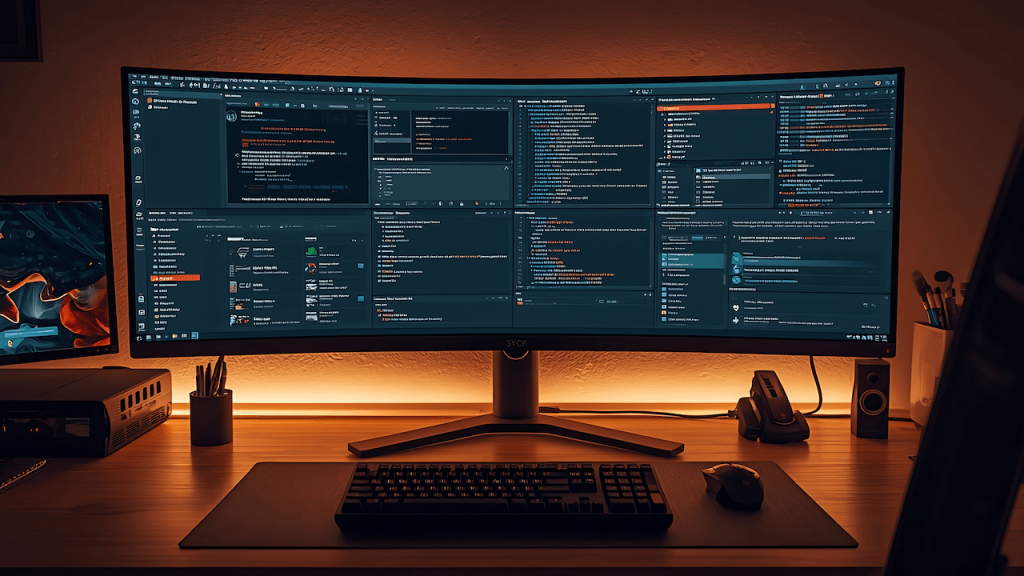
Screen real estate is the spec that matters, not brand or curvature. This is also where the multi-monitor dream from desk-setup posts on Instagram gets a practical answer.
Four or five physical monitors look great in a photo, but they come with bezels breaking up your workspace, more cables, and more desk depth than most setups actually have. A single 43 inch 4K panel, split into a quadrant of four 1080p sections, gets you most of that same functional workspace without any of that. One power cable, no seams between windows, and the OS scaling tip from above is exactly where it matters most, since quadrant splitting only works cleanly once your text and UI are sized correctly for the panel.
That’s not the only way to get there, though. A dual monitor setup still makes sense if you want a hard physical divide between tasks, like a dedicated reference screen next to a main work screen. A curved ultrawide is the middle path, one panel, no bezel gap, but a single continuous canvas instead of quadrants. All three solve the same real estate problem differently, so pick based on how you actually work, not which one looks better in a photo.
I run a 43 inch panel like this daily across QA work, PM tasks, writing, and dev, four jobs that all want a different window layout at the same time. The quadrant split is what makes that workable on one screen instead of bouncing across a laptop and a second monitor all day. Pair a setup like this with a keyboard that can actually keep up for the full desk upgrade.
Xiaomi Pro 43″ 4K — 43″ 4K, the quadrant-split pick for a single-panel four-window workspace. Tested this one personally, it holds up.
Dell S2721QS 27″ QHD (x2) — matched thin-bezel pair, the dual-monitor pick for a hard physical task divide.
Samsung Odyssey G5 34″ — 34″ curved ultrawide, single continuous canvas with no bezel gap.
Best for Programming and Long Sessions
Text clarity and eye comfort matter more here than raw size. Long sessions staring at code or documents reward a sharp, flicker-free panel over a bigger one, and a matte or anti-glare coating goes a long way across an 8-hour day.
Dell UltraSharp U2723QE 27″ 4K — IPS Black panel, matte anti-glare coating, built for text clarity across long sessions.
Best for Video Editing
Color accuracy and panel type are the specs that matter here, not resolution alone. A 4K panel with a narrow, uncalibrated color gamut will still produce inaccurate grades no matter how sharp the image looks.
BenQ PD2705U 27″ 4K — factory-calibrated, 99% sRGB/Adobe RGB coverage, the color-critical pick for grading work.
ViewSonic VP2768a 27″ 1440p — hardware-calibrated, budget-tier color accuracy for editors who don’t need full 4K.
Best for Console Gaming (Desk or Living Room)
Viewing distance dictates size here more than anything else. A 43 inch panel at desk distance and a 55-60 inch TV across a living room are solving the same problem at different scales, and this is exactly the section where the monitor-vs-TV logic above pays off. Most current TVs are console-ready, meaning HDMI 2.1 and 4K/120 support are already built in, so the “TV or monitor” question comes down to viewing distance, not capability. Whichever you pick, remember the PC Mode / Game Mode tip above, it matters here more than almost anywhere else.
At desk distance, a 32 to 43 inch panel with HDMI 2.1 covers a PS5 or Xbox Series X properly without overwhelming a normal desk setup.
Across a living room, a 55 to 65 inch TV is the right scale for most rooms.
LG 42″ OLED C4 — HDMI 2.1, FreeSync/G-SYNC/VRR, near-instant response, the desk-distance console pick.
LG 55″ OLED C6 — 165Hz, 4 HDMI 2.1 ports, the living-room-scale console pick.
If you’re building out the rest of the setup, our guide to the best controllers for PC gaming covers the input side of this same desk-or-living-room decision.
Best Touchscreen Monitor
Touch response and panel type matter here, worth a mention for anyone doing creative input work, like drawing or annotating, directly on the panel rather than through a separate tablet.
ViewSonic TD2230 22″ Touchscreen — 10-point touch, IPS panel, built for direct creative input.
Best Portable Monitor
Weight and brightness are the specs that matter for travel use. A lighter panel matters more for anyone actually carrying it daily, while a brighter panel matters more for anyone using it outdoors or in variable lighting. These portable monitors are great for work-related stuff when you’re on vacation or a quick errand apart from your home office.
ASUS ZenScreen MB16AC 15.6″ — under 2 lbs, USB-C powered, the lightest daily-carry pick.
ViewSonic VG1655 15.6″ — mini HDMI + USB-C, the pick if you want a wired HDMI option alongside USB-C rather than USB-C-only.
Don’t Skip the Monitor Arm
Whatever panel size you land on above, a monitor arm changes how usable it actually is day to day. Freeing up desk space and getting the correct eye-level height matters more than people expect until they try it, especially with larger panels like the 43 inch picks above, where a stand alone often can’t get the height or angle right.
Ergotron LX Desk Mount Arm — supports up to 34″ panels, wide industry-standard compatibility.
The Bottom Line
The right monitor isn’t the one with the most impressive spec sheet, it’s the one that matches what you’re actually doing on it. Match the spec to the use case, factor in whether a TV solves your problem better than a “gaming” label ever will, and size for your actual desk or room instead of the setup you saw online. Use the table above to find your use case and go from there.