Some links on this page are Amazon affiliate links. If you choose to buy through them, HobbyEngineered may earn a small commission at no extra cost to you.
These links only appear where tools or everyday support items naturally fit the topic. No sponsored placements. No hype.
You have been hitting session limits on Claude, ChatGPT, or Gemini. You have heard about running models locally with Ollama. Now you are wondering if your current PC can actually do it.
Maybe. It depends almost entirely on one number: how much VRAM your GPU has. Not your CPU speed. Not your internet connection. Not how much system RAM you have. VRAM.
This guide covers what hardware you actually need to run Ollama with Mistral 7B, Phi-4, and Gemma 4 locally, with real VRAM requirements verified against current hardware. It also covers how to build a machine that handles local AI without giving up your ability to game on the same setup because if you are spending money on hardware, it should pull double duty.
Three desktop build tiers, laptop options with honest caveats, and a section for people who already have a machine and want to know what to upgrade first.
One ground rule before the builds: if your GPU is a GT 1030 or anything with 2GB of VRAM, this guide is not for you yet. The minimum useful threshold for running local LLMs starts at 6GB VRAM. Skip to the upgrade section, check the used GPU recommendations, and come back when you have at least an RTX 3060 or equivalent under the hood.
The One Number That Actually Matters
VRAM is the hard ceiling for running local LLMs. When a model loads, it needs to fit in your GPU’s video memory. If it does not fit, one of two things happens: Ollama offloads layers to your system RAM, which makes inference run 5 to 20 times slower, or the model refuses to load entirely.
Here is what the three models in this setup actually require at Q4_K_M quantization, which is the default Ollama uses:
| Model | Minimum VRAM | Comfortable |
|---|---|---|
| Mistral 7B | 4–5GB | 6GB+ |
| Phi-4 14B | 8GB | 10–12GB |
| Gemma 4 E4B | 6GB | 8GB+ |
| Gemma 4 26B (MoE) | 8GB | 12GB+ |
To put that in practical terms, here is what each VRAM tier actually unlocks:
| VRAM | What you can run | What you cannot |
|---|---|---|
| 6–8GB | Mistral 7B, Gemma 4 E4B, small models only | Phi-4, Gemma 4 26B, anything 13B+ |
| 10–12GB | Full stack in this guide, Gemma 4 26B MoE comfortably | 30B+ models, heavy multi-model |
| 16GB | 13B–30B models cleanly, multi-model switching | 70B models |
| 24GB | 30B comfortably, 70B possible but slow | 70B at full speed |
| 32GB+ | 70B cleanly, most open models without compromise | Nothing practical |
This is the table to bookmark before you buy anything. The jump from 8GB to 12GB is the most impactful upgrade in the consumer GPU range for local AI specifically.
Gemma 4 deserves a specific callout. The 26B model uses a Mixture of Experts architecture, meaning only a fraction of its parameters are active at any given time. The result is a model that runs like an 8B but reasons like a 26B. At 8GB VRAM it works. At 12GB it is comfortable. This is the most practically efficient model in the stack right now and the reason a mid-tier GPU is not as limiting as it sounds.
Phi-4 is the reasoning specialist. At 14B parameters it regularly outperforms models twice its size on math, structured logic, and analytical tasks. It needs more VRAM than Mistral but earns it on the right workloads.
Mistral 7B is the workhorse. Fast, lean, runs on almost anything with a halfway decent GPU. If you want to run one model on budget hardware, this is it.
System RAM matters too, but as a fallback layer, not a substitute for VRAM. When a model partially overflows VRAM, it offloads to system RAM. More system RAM means the overflow does not crash but it does not make inference fast. 32GB is the target for a machine doing both gaming and local AI. 16GB will work but you will feel the pressure on heavier models.
The GPU Market Right Now
GPU pricing is genuinely messy in 2026 and skipping this context will cost you money.
The RTX 40-series is out of production. Cards are still floating around but stock is inconsistent and prices are inflated relative to what the hardware actually delivers at this point. Avoid new 40-series purchases. Used is a different story and is covered in the build tiers below.
The RTX 50-series is the current generation. The RTX 5070 is the most sensible new buy in the lineup with decent availability, 12GB GDDR7, and the best price-to-performance in the range right now. The 5080 and above are strong hardware but currently selling well above their launch MSRPs due to memory supply constraints. Worth it at the right tier but not a default recommendation.
The used RTX 30-series is where the quiet value lives. The RTX 3060 12GB specifically deserves attention: it has more VRAM than the RTX 4060 8GB, costs a fraction of the price on the used market, and for local LLM workloads, more VRAM beats newer architecture every time. If your primary concern is running Mistral and Gemma 4 E4B without spending a lot, the 3060 12GB used is the smartest buy in the market right now.
AMD’s RX 9070 XT is the gaming value story. Strong performance per dollar, widely available, and a legitimate option for anyone where gaming is the primary workload. For Ollama, it runs via ROCm, which works but requires more setup than Nvidia’s CUDA. Occasional driver friction, less community support for local AI edge cases. If gaming is primary and local AI is secondary, AMD is worth considering. If local AI is the priority, stay on Nvidia.
One more used card worth knowing about: the RTX 3090. It carries 24GB of VRAM, which is more than the RTX 5080 and puts it in a completely different model tier — 30B models run comfortably, 70B models become possible. On the used market it sits around $700–$900 depending on condition. For developers, tinkerers, and anyone who wants to run heavier models without paying flagship prices, the 3090 is the most underrated card in the current used market. Gaming performance is weaker than newer cards at that price, but for local AI workloads specifically, 24GB of VRAM beats 12GB of faster VRAM every time.
Three Desktop Build Tiers
Prices shift. Use these recommendations as your starting point and check current Amazon pricing before you buy.
Tier 1: The Budget Build
Who this is for: first-time builder, someone upgrading from an old machine, or anyone who wants to run Mistral and Gemma 4 E4B without a large upfront spend.
The GPU anchor here is the used RTX 3060 12GB. Not the 4060. The 3060 12GB. The VRAM advantage is real and for this workload it matters more than architectural improvements. At roughly $200–$230 used, it is hard to beat for local AI entry-level.
| Component | Pick |
|---|---|
| GPU | Used RTX 3060 12GB |
| CPU | Ryzen 5 5600X or Intel i5-12400 |
| RAM | 32GB DDR4 kit |
| Storage | 1TB NVMe Gen3 |
| Case + PSU | Budget ATX |
What it runs: Mistral 7B cleanly. Gemma 4 E4B comfortably. Phi-4 14B with some VRAM pressure but functional. Gaming at 1080p high settings on most current titles, 1440p medium on older games.
What it does not do: Gemma 4 26B at full speed, multi-model switching, or anything requiring 16GB+ VRAM. That is what Tier 2 is for.
If you are unsure whether to build or buy a prebuilt at this budget, the tradeoffs are covered in detail here: Gaming PC vs Prebuilt PCs.
Tier 2: The Sweet Spot Build
Who this is for: serious local AI user, someone gaming at 1440p, anyone who wants to run the full model stack without compromise.
This is the build that runs all three models cleanly, handles multi-model switching, and games at 1440p with headroom. The GPU decision comes down to one question: is gaming performance or pure value the priority?
| Component | Option A (gaming first) | Option B (value first) |
|---|---|---|
| GPU | RTX 5070 12GB | Used RTX 3080 10GB |
| CPU | Ryzen 7 7700X or i5-13600K | same |
| RAM | 32GB DDR5 | same |
| Storage | 2TB NVMe Gen4 | same |
Option A gives you DLSS 4, better 1440p and 4K gaming headroom, and the newer architecture. Option B frees up $300 in budget that can go toward better RAM, a larger NVMe, or saving for a future GPU upgrade and the 10GB VRAM still handles the full stack.
If gaming matters as much as local AI, take the RTX 5070. If you want to stretch the rest of the build, the used 3080 is a legitimate call.
What it runs: All three models cleanly. Gemma 4 26B MoE comfortably on either GPU. Gaming at strong 1440p, capable 4K on Option A.
Tier 3: The Full Setup
Who this is for: pipeline work, multi-model setups, 4K gaming without compromise, or anyone who wants to run heavier models like Gemma 4 26B and Phi-4 simultaneously.
| Component | Pick |
|---|---|
| GPU | RTX 5080 16GB |
| CPU | Ryzen 9 7900X or i7-13700K |
| RAM | 64GB DDR5 |
| Storage | 2TB NVMe Gen4 + 2TB SATA SSD as your secondary |
The RTX 5080 16GB is the call here, not the 5090. The 5090’s price premium is not justified for this workload unless you are running 70B+ models, which require 32GB+ VRAM anyway. For everything in this guide’s stack and for 4K gaming, the 5080 is the ceiling you actually need.
What it runs: Everything in this guide, comfortably and simultaneously. Pipeline work, LiteLLM multi-model routing, 4K gaming, sustained workloads without throttling.
Laptops: Yes, With Real Caveats
Laptops make sense if you need to move. Coffee shop, client site, travel as the portability justifies the tradeoffs. If you are staying home, build a desktop. The same money goes significantly further and you get better thermals, more VRAM, and no throttling. But if the machine needs to move with you, here is what you are actually dealing with.
VRAM is locked at purchase. Whatever the laptop GPU ships with is permanent. There is no upgrade path. Buy for the VRAM spec you need, not the one you can afford to grow into.
System RAM is usually upgradeable. Most gaming laptops have accessible SO-DIMM slots. If a laptop ships with 16GB, upgrading to 32GB at purchase or shortly after is typically straightforward and does not void the warranty in most cases. Target 32GB. This is the upgrade your IdeaPad taught you.
Laptop GPUs are not desktop GPUs. This is the most important thing to understand. A laptop RTX 5070 is not an RTX 5070. It shares the name but runs at a lower TDP, has reduced clock speeds, and hits thermal limits under sustained load. As a rough rule, a laptop GPU performs about one tier below its desktop equivalent under sustained workloads. A laptop RTX 5070 behaves closer to a desktop RTX 5060 Ti when running local LLM inference for extended periods.
Always check the TDP, not just the model name. A laptop with an RTX 5070 at 80W and one at 150W are different products delivering different performance. The spec sheet will list this if you look for it.
Battery life under inference load is approximately 30 to 45 minutes. Local LLM inference is a full GPU workload. Plan accordingly.
With those caveats stated, here are the specific picks:
The Workhorse — Lenovo Legion Pro 7i (RTX 5070 Ti or 5080) Best sustained inference performance of any laptop here. Thick chassis, Legion ColdFront Vapor cooling built to prevent throttling under extended load. If you are running Ollama pipelines on a laptop rather than just chatting with models, this is the one.
The Portable — ASUS ROG Zephyrus G14 Lightest capable machine on this list at around 1.5kg. Tops out at RTX 5080 Laptop GPU, handles the full model stack. Thin chassis means faster throttling under sustained inference — best for gaming, casual AI use, and carrying everywhere.
The Head-Turner — ASUS ROG Zephyrus G16 35 individually addressable LEDs on the lid, customizable animations, the one people look at in coffee shops. Tops out at RTX 5090 Laptop GPU, 16-inch 2.5K 240Hz OLED. Capable hardware dressed as a statement piece.
The Flex — ASUS ROG Zephyrus Duo Dual 3K OLED touchscreens, up to RTX 5090 Laptop GPU. The world’s first dual 16-inch screen gaming laptop. Niche, expensive, and the most hardware-as-hobby machine on this list. If you know you want it, you already know why.
Always verify VRAM on the exact Amazon listing before buying. Some RTX 5070 laptop configurations ship with 8GB, others with 12GB, under the same product name.
One note on Macs: Apple Silicon uses unified memory, meaning the same physical RAM pool serves both CPU and GPU. A MacBook Pro M3 with 32GB unified memory effectively has 32GB available for Ollama, genuinely capable for local LLM work in a way that defies its hardware tier. If you already own one, use it. If you are buying new hardware specifically for this purpose, a Tier 1 desktop does the same job for a third of the price and also games. But the Mac angle is real and worth knowing about if you are already in that ecosystem.
Already Have a PC? Upgrade This First
If you are not building from scratch, here is the decision tree.
Less than 8GB VRAM: The GPU is the bottleneck. Everything else is secondary. A used RTX 3060 12GB dropped into an existing system is the cheapest path to running the full entry stack. Check compatibility with your current motherboard’s PCIe slot and PSU before buying.
8GB VRAM but less than 32GB system RAM: Upgrade RAM before the GPU. Ollama offloads to system RAM when VRAM fills. 16GB creates a bottleneck on that overflow. 32GB DDR4 kits are inexpensive right now and this is the highest-impact upgrade for existing machines with a capable GPU.
32GB RAM and 8GB+ VRAM but running on HDD or SATA SSD: Get an NVMe drive. Model files are large, Gemma 4 26B is an 18GB download, Phi-4 is around 9GB. Loading from a slow drive is the bottleneck that kills the experience before inference even starts. A 1TB NVMe Gen3 or Gen4 is the cheapest meaningful upgrade in this scenario. [AA: 1TB NVMe]
Already at 12GB+ VRAM, 32GB RAM, NVMe storage: You are ready. Install Ollama, pull your models, and start running. The software setup is covered in full detail over at EngineeredAI, Ollama installed, LiteLLM configured as a proxy layer, routing logic so cheap tasks run locally and cloud models only come in when they earn it: Ollama + LiteLLM on Windows.
What Not to Spend On
LLM inference priorities are almost the opposite of gaming priorities. Before the builds, here is where your money does nothing for this workload.
Liquid cooling. Inference is a GPU workload, not a CPU workload. Your CPU is mostly idle during model inference. A beefy air cooler on the CPU is more than enough. Spend the liquid cooling budget on VRAM instead.
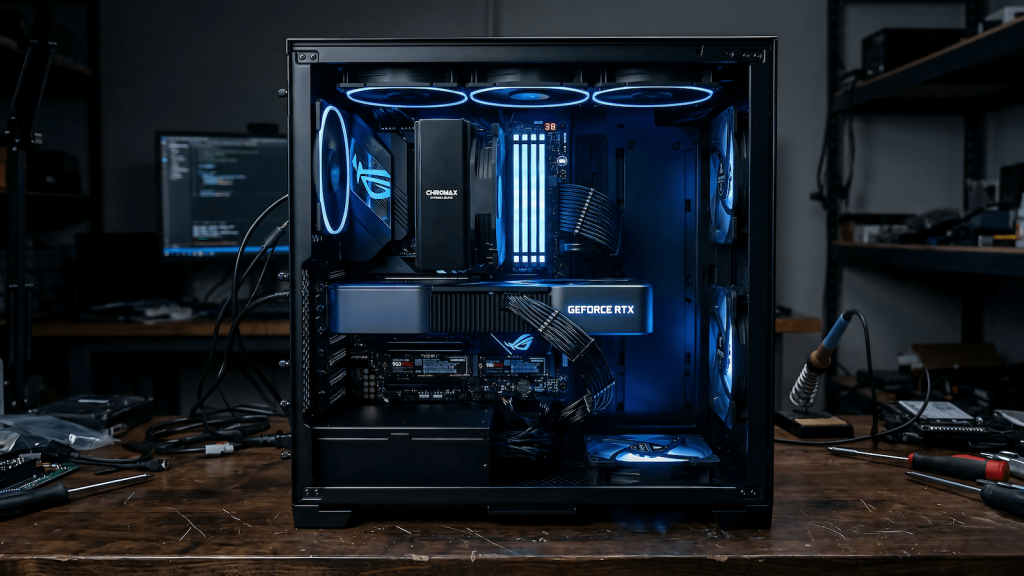
RGB. Zero impact on token generation speed. Zero. If you want it, fine and honestly, if you are going to stare at this machine for hours, looking good is not nothing. Just do not let it eat budget that could go toward a GPU tier upgrade. Pretty and capable are not mutually exclusive, but pretty alone does not run Gemma 4.
High-end CPU. A Ryzen 5 5600X and a Ryzen 9 7950X produce nearly identical inference speeds on the same GPU. The CPU dispatches work to the GPU and then waits. Beyond a certain baseline, CPU upgrades do nothing for local AI performance. Spend the difference on VRAM.
Overpriced motherboard. You need PCIe 4.0 support and enough slots for your build. Beyond that, a premium motherboard adds features that do not affect inference speed at all. Mid-range boards are fine for this workload.
More than 32GB system RAM for entry builds. System RAM is overflow storage for when VRAM fills. Once you have 32GB, adding more RAM does not make inference faster, it just means the overflow does not crash. Fix the VRAM first.
The pattern is consistent: anything that would matter in a gaming or workstation build matters less here. VRAM is the only spec that directly determines what you can run and how fast it runs.
AMD vs Nvidia for Local AI: The Short Version
Nvidia CUDA is the default for Ollama. Every model works, setup is straightforward, community support for edge cases is extensive. If local AI is a meaningful part of why you are buying, Nvidia is the safer choice.
AMD ROCm works. Ollama supports it, the RX 9070 XT runs models fine, and if you are primarily a gamer who wants local AI as a secondary capability, AMD’s gaming performance-per-dollar is hard to argue with right now. Just know that ROCm occasionally requires extra setup steps that CUDA does not, and some community resources assume Nvidia.
The rule: Nvidia if AI is the priority. AMD if gaming is the priority and AI is a bonus.
The Bottom Line
VRAM is the spec that determines what you can run. Everything else is context. The used RTX 3060 12GB is the most practical entry point in the current market. The RTX 5070 is the sweet spot for new hardware. The RTX 5080 is the ceiling for this model stack and handles 4K gaming while it is at it.
Hardware sorted. The software side is Ollama, LiteLLM, routing logic, and how to set up the full local AI stack on Windows is over at EngineeredAI: Ollama + LiteLLM on Windows